Here are the steps to import a DXF from Artec Studio to Solidworks:
- Export the sections from Artec Studio by clicking Export... from the Measures panel
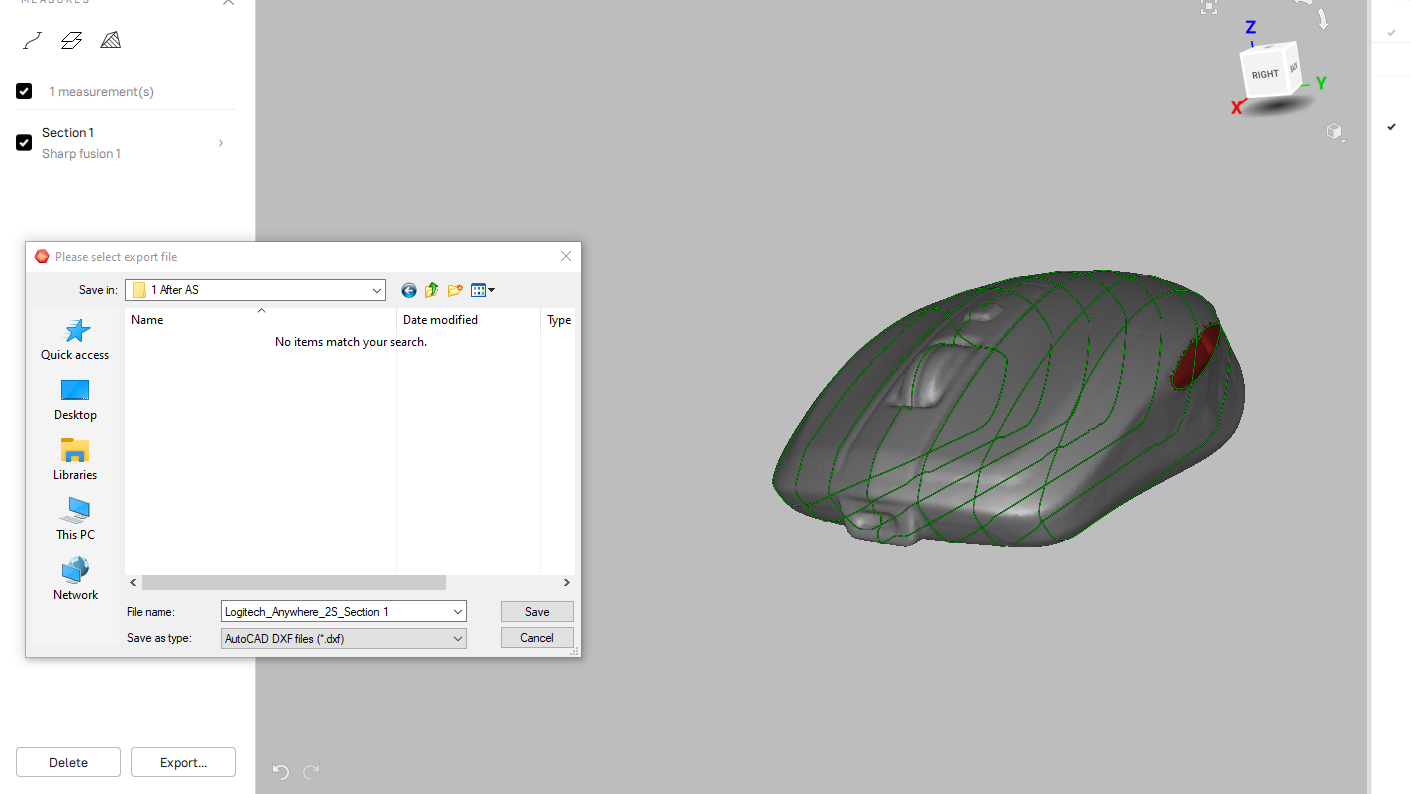
- Save the sections as a .DXF file
- Open Solidworks
- If there is a Welcome screen at startup, click Part. If there is no Welcome screen at startup, click File>New... then select Part

- Next, select the plane where you would like to place the sections

- Go to Insert>DXF/DWG...

-

- The DXF/DMG import tool will open. Under "Import to part as", select 3D Curves or model and select Next

- Verify the units are correct. By default, Artec Studio exports in mm, although this can be changed in Artec Studio settings

- Click Next
- Tumble the model and verify that the sections have imported correctly

In case you experience any issues with your Artec 3D scanner or require technical assistance with your device or Artec Studio, in the first instance please contact your local Artec dealer/distributor directly. You can also contact the Artec Support Team by clicking on "Submit a request" button on the bottom right part of the screen or by emailing support@artec3d.com